
If your audit takes a week, the walking isn’t the slow part.
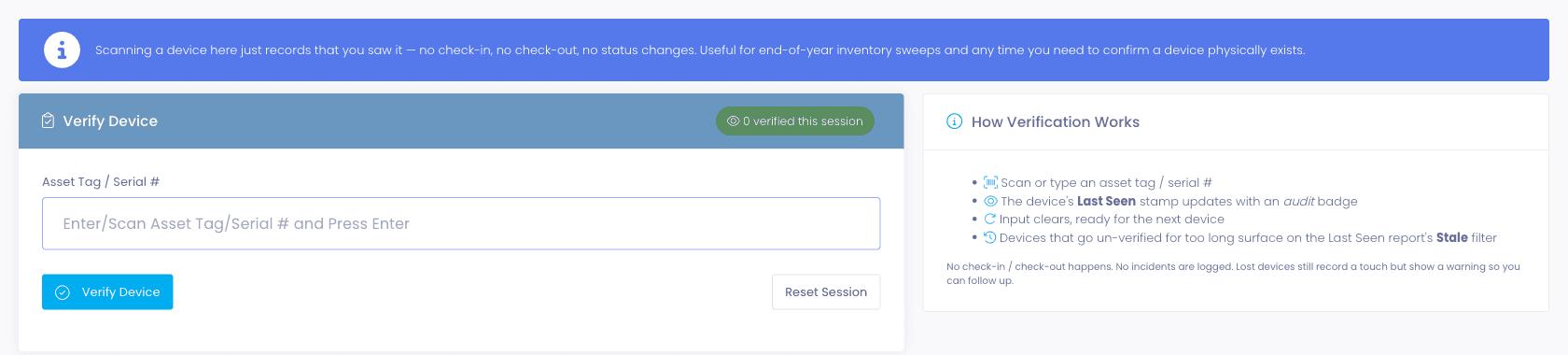
Rapid Verify is a scan mode that does one thing: it stamps the device’s Last Seen and changes nothing else. Open it on a phone, walk a closet, scan a tag. The device stays on the same lease, in the same room, with the same status, and the audit records that you saw it.
Stale filter
The morning after, find the gaps.
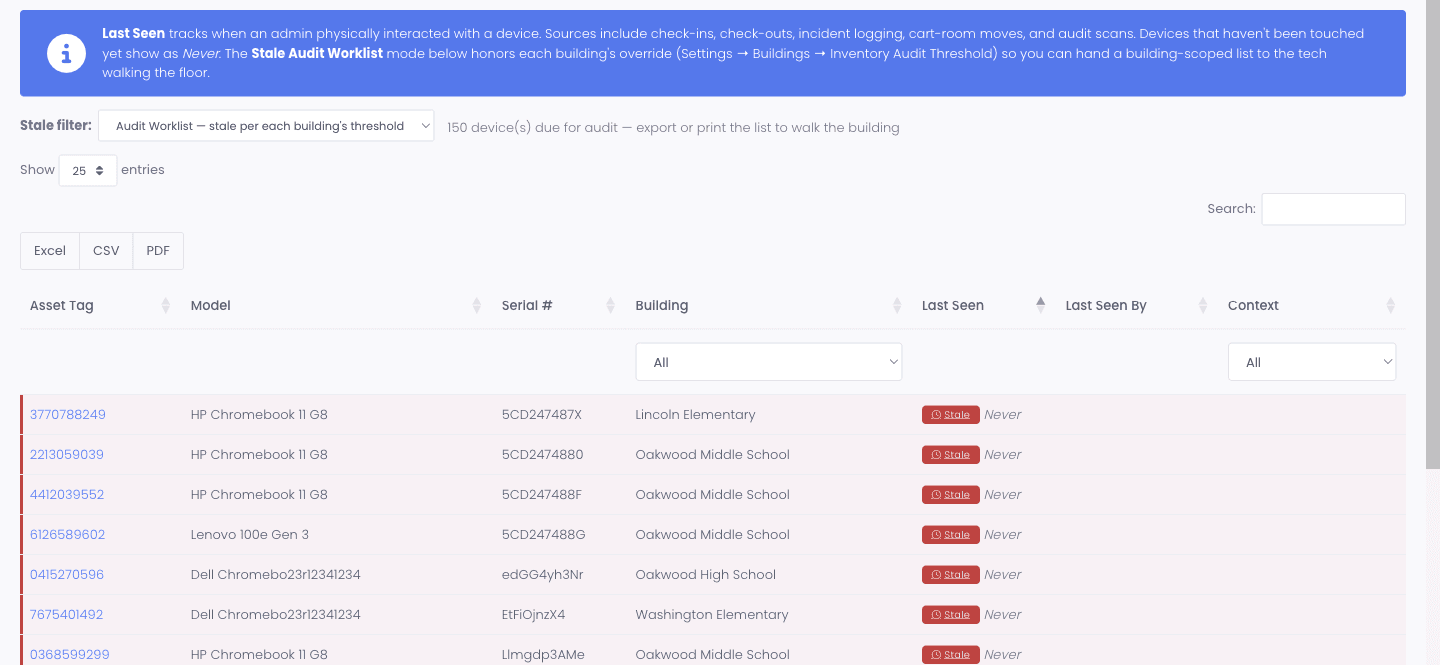
Walking is the easy part. The harder part is the next morning, when somebody has to figure out which devices nobody saw. The Device Last Seen report opens in Audit Worklist mode by default, honoring each building’s threshold, and surfaces every device that’s overdue for a verification so you can hand a building-scoped list to the tech walking the floor.
- Audit Worklist mode evaluates every device against its building threshold and surfaces the overdue ones with a red Stale badge
- Pick a custom Stale filter (three, six, twelve, eighteen-plus months, or any day count) for one-off sweeps
- A running counter shows how many devices are due for audit right now
- Filter by Building and Last Seen Context (audit, deployment, check-in, etc.) right from the column headers
- Export the worklist as Excel, CSV, or PDF for the technician walking the floor
Per-building thresholds
Different campuses get different targets.
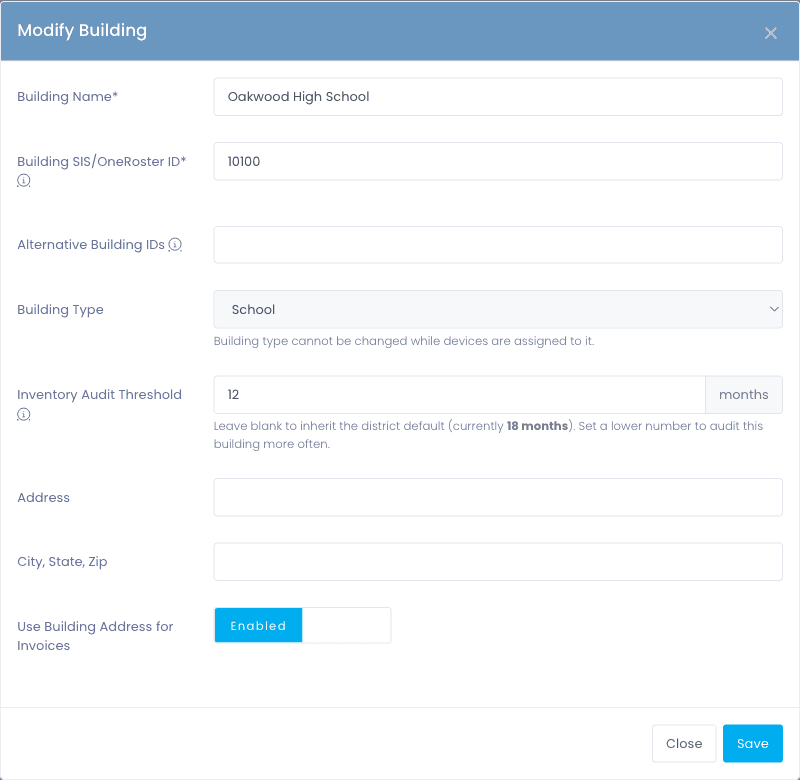
A district-wide audit threshold is noise the moment your campuses differ in size. A small elementary with two carts can’t be held to a high-school standard, and a 2,000-student high school can’t be held to an elementary one. Every building can override the district default so each campus rolls up against its own number, and the worklist stops flagging campuses for being themselves.
- Set an Inventory Audit Threshold per building from Settings → Buildings
- Buildings without an override fall back to the district default (configured under Settings → Inventory Settings → Settings tab)
- The Audit Worklist evaluates each building against its own threshold, not a global one
- A 12-month threshold at a busy high school catches a missing device months before the 18-month district default would
- Useful for districts with consolidation, redistricting, or seasonal enrollment shifts
Not everything needs a person walking
Some of the sweep can run without you.
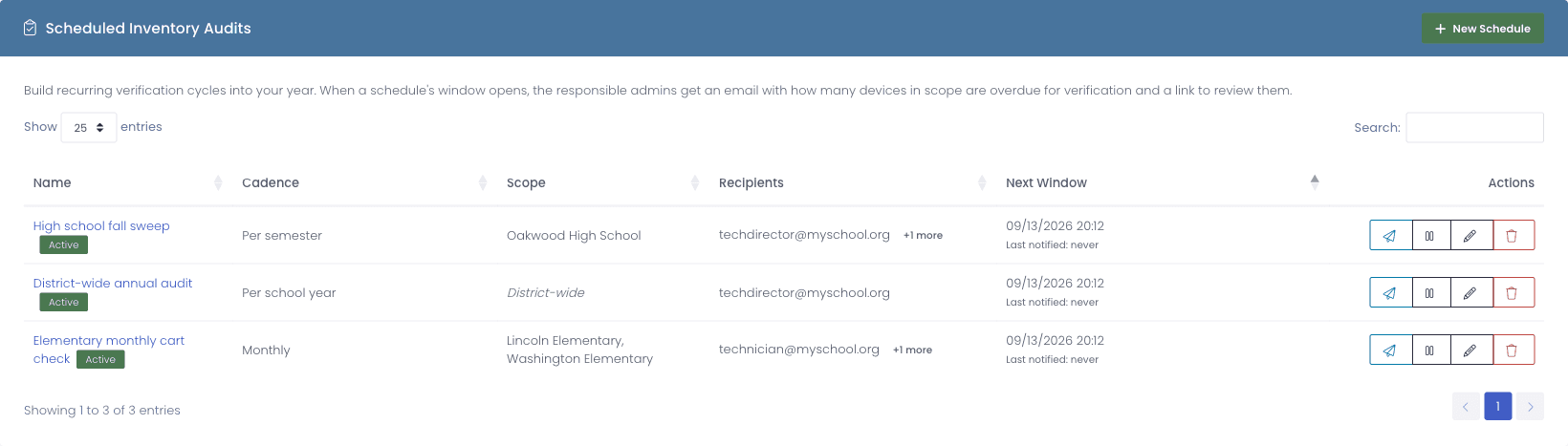
The annual walk is the part that has to be done by hand. Remembering to start it, chasing the campuses that have not, and re-verifying a Windows laptop that phones home to your management server every day are not. Schedules open the audit window and email the people who need to act, and Windows fleets can count a check-in as having been seen.
- Build recurring audit schedules so verification cycles are part of the year rather than something somebody remembers
- Scope a schedule to the whole district or to specific campuses, each one honoring its own stale threshold
- When a window opens, everyone on the notify list is emailed how many devices in scope are overdue, with a button straight to the list
- Notify Now fires a reminder immediately, and a schedule can be paused without losing its configuration
- For on-prem Windows fleets, SCCM check-ins can auto-verify devices during an audit, opt-in, and each one is recorded as verified via SCCM check-in so it reads distinctly from a hands-on scan
- Roll-call scan a single cart or room to confirm everything that should be there is, with the missing devices named
Verify Inventory permission
Hand it out for the audit. Pull it back when it’s done.
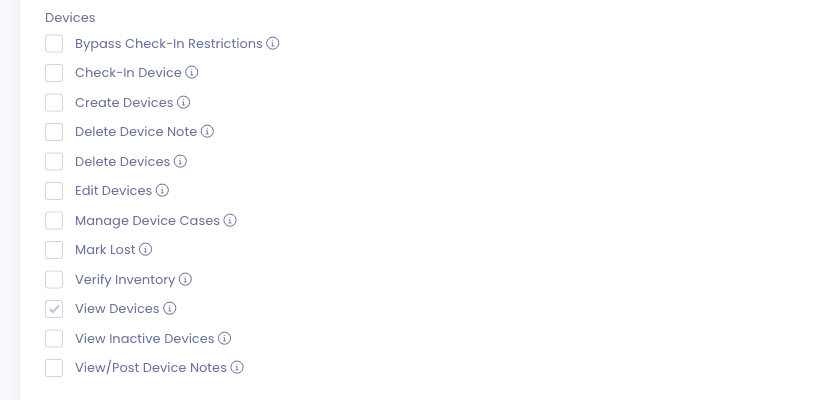
During audit season every tech, building admin, and library aide should be able to verify devices in parallel. The rest of the year, that access can sit back with the inventory specialist. The Verify Inventory permission is dedicated to Rapid Verify and nothing else, so granting it broadly during the sweep doesn’t accidentally elevate anyone to admin.
- Granular permission, separate from Check-In Device, Edit Devices, Mark Lost, and the other device permissions
- Grant per-role so a library aide can verify without seeing the rest of the inventory
- Revoke per-role at end of audit without disturbing day-to-day support staff
Why schools choose Manage1to1
Built for K-12. Not retrofitted from enterprise IT.
An audit scan isn’t a check-in
Rapid Verify is its own flow. Stamping Last Seen doesn’t change assignment, status, or location, so the bookkeeping doesn’t pile up.
Your phone is the scanner
Any phone or tablet with a rear camera scans tags and QR codes. Nothing to install, nothing to pair, no hardware budget for the audit team.
Sized to the campus, not the district
Every building can override the district default so a small elementary and a flagship high school both report against numbers that make sense.
Audit access without admin access
Verify Inventory is dedicated to Rapid Verify, so you can hand it out broadly for the sweep without elevating aides or volunteers to anything they shouldn’t have.
FAQ
Common questions.
- Rapid Check-In and Rapid Check-Out change device state. Rapid Verify doesn’t change anything. Each Rapid Verify scan stamps the device’s Last Seen with an audit-context badge and leaves assignment, status, and location untouched. That distinction matters: you can audit a device a student still has on lease without changing the lease, and you can verify a stack of Chromebooks in a closet without accidentally checking them in.
- Any phone, tablet, or laptop with a rear camera and a touch interface. Open Rapid Verify in a browser, tap Scan Asset Tag, point at the code, and the value drops into the form. It reads standard 1D codes (Code 128, Code 39, EAN, UPC) and 2D codes (QR, Datamatrix). On a desktop with a USB scanner the button never appears, so the camera workflow doesn’t get in the way of a faster fixed-scanner setup at the help desk.
- Each building can have its own Inventory Audit Threshold, set from Settings → Buildings on the building edit modal. Buildings without an override fall back to the district default configured under Settings → Inventory Settings → Settings tab. The Device Last Seen report in Audit Worklist mode evaluates each building against its own threshold rather than a global one, so a small elementary and a large high school both report sensibly.
- During audit season, give it to everyone helping with the sweep: techs, building admins, library aides, volunteer parents. After the audit closes, pull it back to the inventory specialist or asset coordinator. Verify Inventory is granular and separate from check-in, check-out, and edit-device, so elevating help temporarily doesn’t grant broader access.
- Yes. A schedule defines how often an audit window opens, who gets reminded, and which campuses are in scope. When a window opens, everyone on the notify list is emailed how many devices in scope are overdue for verification along with a button to review them, and each campus is evaluated against its own stale threshold rather than a district-wide one. Notify Now sends that reminder immediately if you want to start a cycle early or test the setup, and a schedule can be paused without losing its configuration.
- Not if you turn on auto-verification. For on-premises Windows fleets, an SCCM check-in can count as having seen the device during an audit. It is opt-in, because plenty of districts want eyes-on rather than a network heartbeat, and each auto-verified device is recorded as verified via SCCM check-in so it reads distinctly in the history from a hands-on Rapid Verify scan. You get to decide what evidence your June number is built from.
- They answer different questions. Rapid Verify stamps Last Seen on whatever you scan, anywhere, and builds up a district-wide audit over time. A roll-call scan is scoped to one container, a cart or a room, and tells you what is accounted for and what is missing from that specific set. Use roll call for a morning cart check; use Rapid Verify for the annual sweep.
- The Lost banner shows but doesn’t block the scan. Manage1to1 records the audit Last Seen and shows a Mark Found button inline. Click it, the lost flag clears immediately, and the device returns to its normal state. No ticket, no separate page, no leaving the audit flow.
- For audit work, most districts run the sweep entirely on phones once they’ve seen the workflow. For desk-side check-in and check-out where a fixed scanner is faster, USB scanners remain the right fit. Both work side by side: help desk techs use USB scanners at their stations, audit teams in the field use phones.
See what fits your district
Run your next audit on phones, not spreadsheets.
Tell us about your fleet, your building mix, and when you usually try to get the audit done. We’ll reply with a quote, a migration plan, and a sample audit roster against real data so you can see the workflow before you commit.
- Quote tailored to your enrollment + SLA tier
- Migration plan from your current help-desk / asset tool
- Integration map for your MDM, SIS, and payment processor
- Honest answers, our team is all former K-12, we know what the product does and doesn’t do
Prefer the shared demo first? Try it at manage1to1.com/demo.