
A student changes schools in March. Where did the Chromebook go?
Transfers are the quiet way a device inventory goes wrong. Nobody notices a single student moving between buildings, and nothing in the process announces that a laptop is now assigned to a child who is no longer there. Multiply that across a year and the June count stops matching the building.
Where it breaks today
Nothing breaks loudly. It just quietly stops being true.
A transfer is three separate facts changing at once: the student now belongs to a different building, the device is still assigned to them, and any outstanding balance is still owed. Most districts handle the first through the SIS, the second by somebody remembering, and the third not at all. None of those failures produce an error message, which is exactly why they accumulate until the annual audit.
- A device stays assigned to a student who left the building in October, and nobody finds out until June
- The receiving school issues a second device because the first one never came back or was never recorded
- An outstanding damage balance follows nobody, and the district writes it off by default
- Chromebooks sit in the wrong Google org unit, so policy applies from the building the student left
- Somebody maintains a parallel spreadsheet of transfers, which works right up until that person is out
The workflow
How it actually runs.
- 1Step 1 of 6
The transfer arrives from your SIS, not from an email
A building transfer is one of the changes the roster sync carries, alongside new enrollments, name corrections, grade promotions, and withdrawals. It lands on the schedule you set rather than depending on anyone forwarding a note to IT, which means the roster reflects the student being at their new school before anyone in IT has heard about the move.
- Building transfers update the building assignment on the existing user record
- The same sync handles name changes, grade promotions, and status changes
- One vendor-agnostic OneRoster connector, so this works the same whichever conforming SIS you run
Manage1to1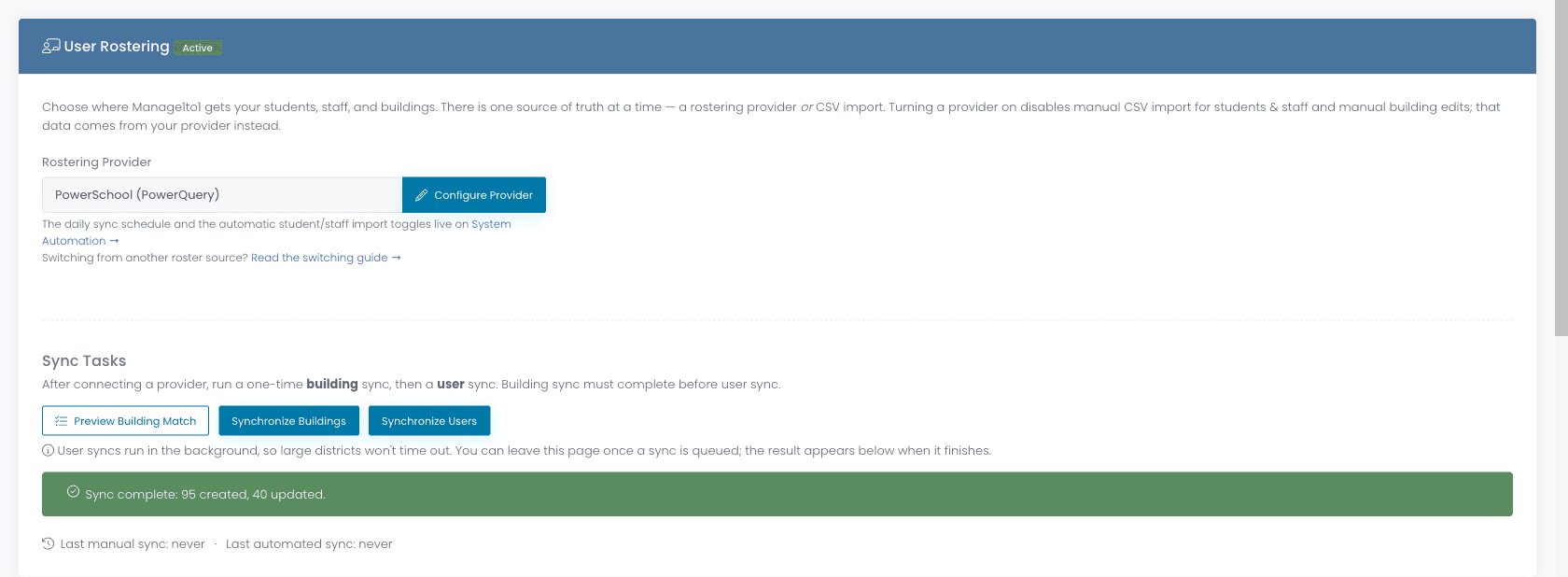
- 2Step 2 of 6
The student keeps their record, so the history survives
A transfer updates the person rather than creating a new one. That sounds like a detail and it is the whole game: the device assignment, the incident history, the invoice, and the signature on the original handout agreement all stay attached because the record they were attached to did not change. Districts that re-import transfers as new users lose all four and never quite know it.
- One person keeps one record across buildings, grades, and name changes
- Checkout history, incidents, and balances stay attached through the move
- Building and room are dated, so you can see who was responsible and when
Manage1to1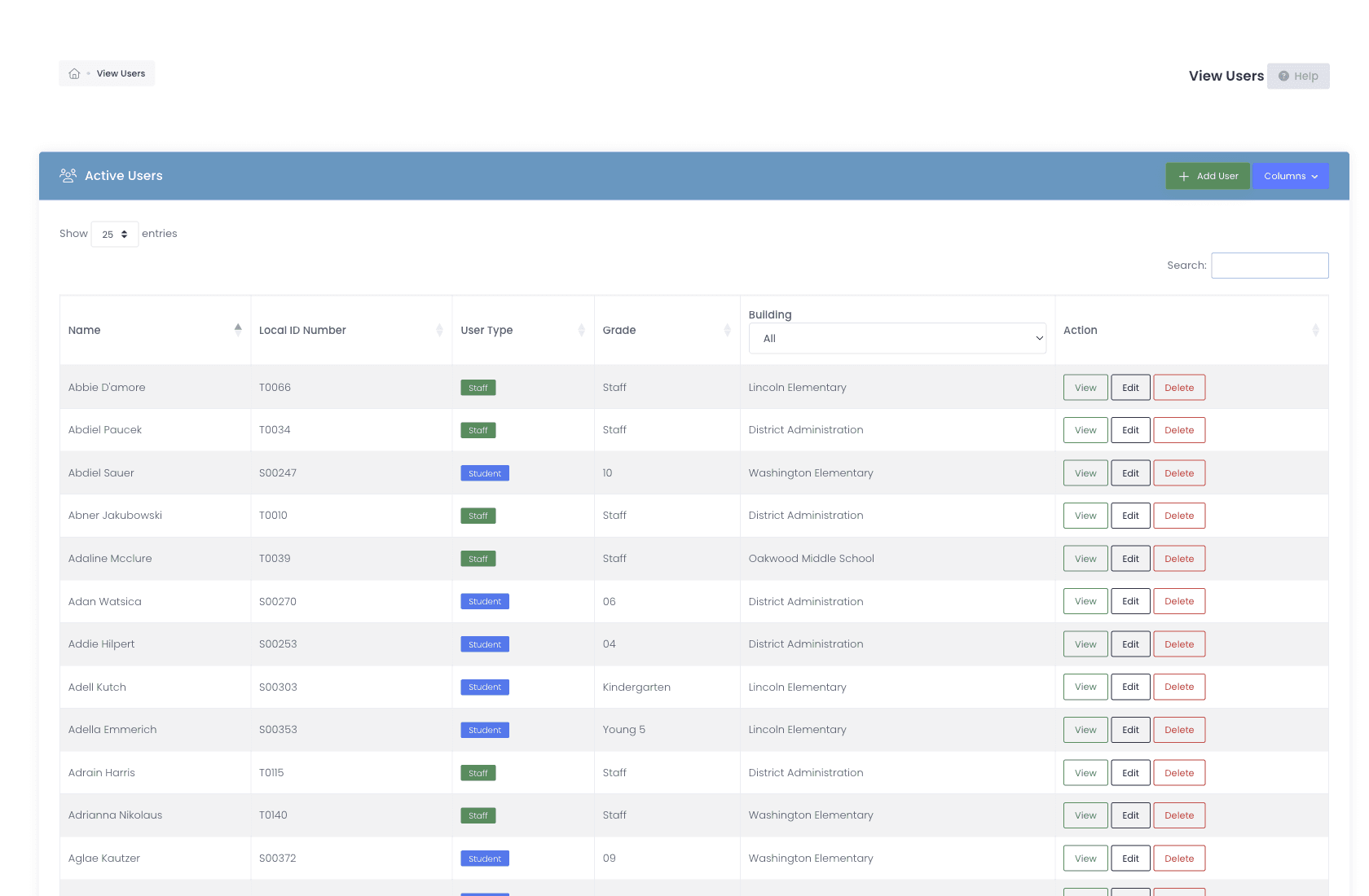
- 3Step 3 of 6
Holding a device through a transfer gets flagged
This is the moment the process usually fails silently, so it is the moment worth interrupting. When a student moves buildings while still holding an open device, that is surfaced rather than left for the audit to discover. The receiving school also gets warned at checkout if the student already holds a device, which is what stops a second laptop going out to replace one that was never returned.
- A building transfer while a student holds an open device is flagged
- Checkout warns when the student already has a device assigned
- The decision stays with your team: collect it, or let it travel with the student
- 4Step 4 of 6
The Chromebook lands in the right org unit on its own
Device policy in Google Workspace usually follows the building, so a device that moves with a student needs to move org units too. Rules can act on a change of status, building, or grade and move the managed device into the correct OU, with protected OUs you mark off-limits so a rule never touches the ones you manage by hand.
- Rules act on status, building, or grade changes
- Protected OUs are excluded, so sensitive placements are never moved automatically
- Write-back sets the annotated user and location alongside the OU
Manage1to1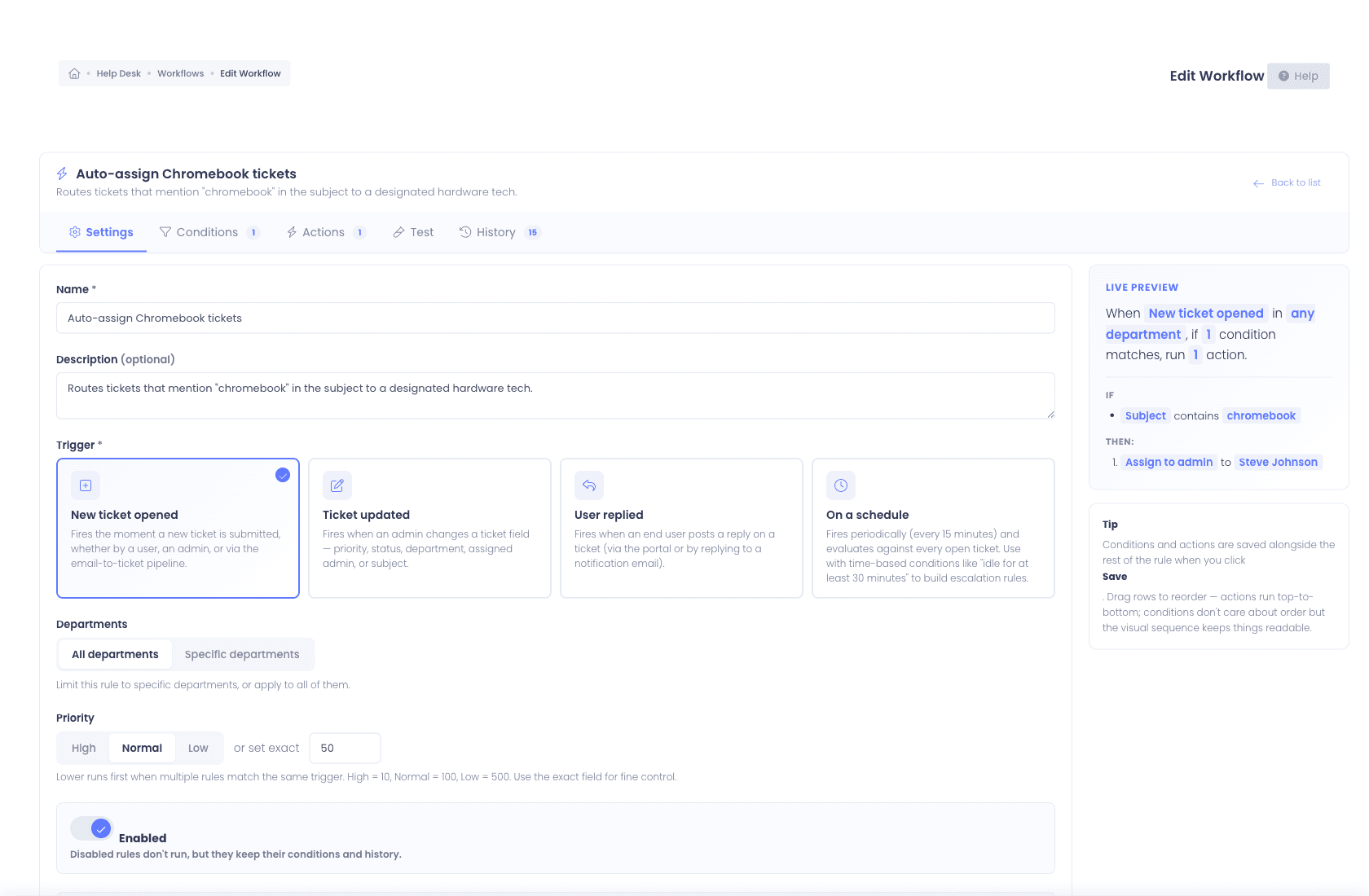
- 5Step 5 of 6
The outstanding balance moves with the student
A damage charge raised in September is still owed in March. Because the invoice is attached to the person and the person kept their record, the balance travels with them rather than being orphaned at the old building. The receiving school can see it, and so can the business office, without anybody reconciling two lists.
- Invoices stay attached to the student record through the transfer
- Outstanding balance is visible at checkout, so a device is not issued into an unresolved debt by accident
- Districts running Genesis can pass fees back to the SIS so families settle where they already pay
Manage1to1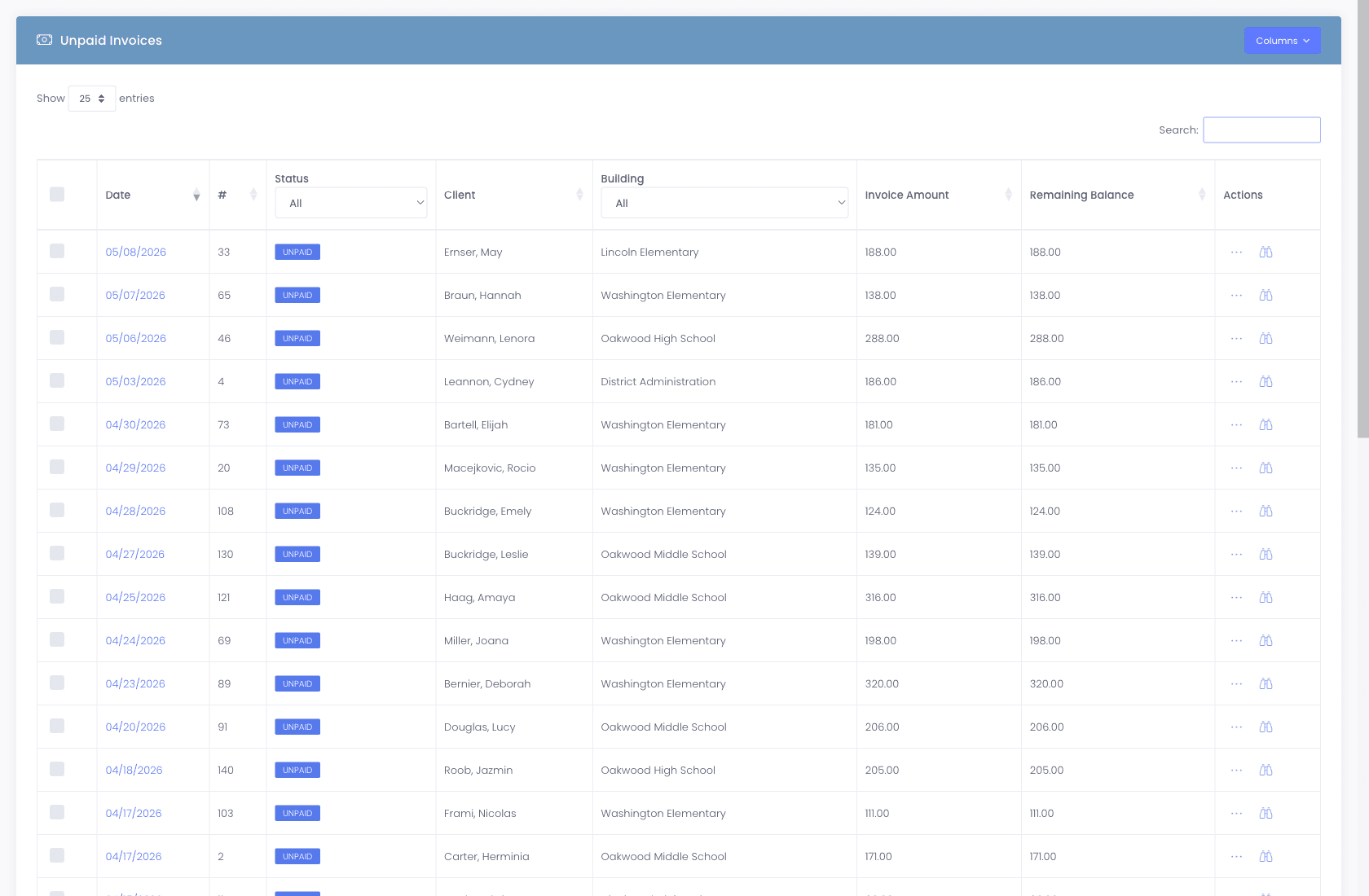
- 6Step 6 of 6
A student leaving the district is deactivated, not deleted
A withdrawal is a status change on the sync, and the account is marked inactive rather than removed. Historical data is preserved deliberately, because the device that student had, the damage they were billed for, and the agreement they signed are all things a district may need to produce a year later. Bulk disable handles the same job for a list of students at once.
- Withdrawals arrive as a status change and mark the account inactive
- Historical records are preserved rather than deleted
- Bulk disable processes a list at once for larger cleanups
Manage1to1
What changes
The roster keeps matching the building, all year.
None of this asks anyone to remember anything. That is the point of running it off the SIS rather than off goodwill. The audit in June is no longer where you discover what happened in October, because nothing was waiting until June to be noticed.
- A device assigned to a student who left the building is surfaced when it happens, not at the annual audit
- The receiving school knows the student already holds a device before issuing a second one
- Damage balances stop evaporating at the building boundary
- Google org unit placement follows the student without a manual move
- No parallel transfer spreadsheet, and no single person whose absence breaks the process
The capabilities behind this
FAQ
Common questions.
- The roster sync moves the student to their new building on its normal schedule, and because a transfer updates the existing record rather than creating a new one, the device assignment travels with them. If the student is still holding an open device when the building changes, that is flagged so your team can decide whether to collect it or let it move with them. Either way the checkout history records what happened.
- Yes, because they keep their record. Checkout history, incidents, signed agreements, and outstanding invoices are all attached to the person, and a transfer updates that person rather than replacing them. This is the main practical reason to roster from the SIS rather than re-importing students as new users each time something changes.
- Checkout warns when the student already holds a device. It is a warning rather than a hard block, because there are legitimate reasons to issue a second device, a loaner during a repair being the obvious one. What it prevents is the accidental case, where a receiving school has no way of knowing the student arrived still holding something.
- Yes. The invoice is attached to the student record and the record survives the transfer, so the balance is visible at the new building and to the business office without anyone reconciling two lists. Districts running Genesis can also push fees back into the SIS so families settle where they already pay other school balances.
- The withdrawal arrives as a status change on the sync and the account is marked inactive rather than deleted, which preserves the historical record. That matters more than it sounds: the device they held, any damage they were billed for, and the agreement they signed may all need producing months later. Bulk disable handles the same operation for a list of students at once.
See it with your SIS
Watch a transfer move a device, a balance, and an org unit.
Tell us which SIS you roster from and we will run this exact sequence in a demo against sample data. Our whole team is former K-12 IT, so if your transfer process already handles this well, we will say so rather than pretend otherwise.