
June 30, 2026 · Manage1to1
How to Buy Chromebooks for Schools: Specs, Real Cost, and Rollout
Which Chromebook specs actually matter in a district fleet, what the real per-device cost is once accessories and repairs are counted, and how to plan the rollout.
Most articles about Chromebooks for schools fall into one of two camps: a manufacturer pitching their own SKU, or a reseller listing prices with a "Get a Quote" button. Neither tells a Tech Director what they actually need to know. We've spent over a decade managing 1:1 device programs for K-12 districts. The buying decision is only half the work. The other half is everything that happens after the boxes show up at the warehouse.
This is a guide written for the second half. We'll cover what's on K-12 shortlists today, the four specs that actually matter for a Chromebook that has to survive a fifth-grade backpack, what a 1:1 Chromebook program really costs over four years, and the deployment + management workflow that decides whether your fall rollout takes a week or three.
What Chromebooks K-12 schools actually use today
There are roughly 38 million Chromebooks active in K-12 classrooms worldwide. K-12 mobile PC shipments hit 43 million units in 2025, a 27% year-over-year jump (Source: FOSS Post, 2026). Chromebooks are still the dominant device category in U.S. K-12 1:1 programs, and the shortlist most districts evaluate hasn't changed much in three years.
In practice, the realistic options are:
- Lenovo (100e, 300e, 500e series). Long-standing K-12 default. Rugged hinges, MIL-STD-810H drop spec, parts availability is the best in class.
- Acer (Chromebook Spin 311 / 511 / 712). Strong durability for the price, common in larger districts running tight per-student budgets.
- HP (Fortis G11, G12). Good keyboard, decent screen, slightly higher sticker price but a better support contract.
- Dell (3110 / 3130 series). Reliable, mature MDM hooks, often comes with extended warranty bundles.
- Samsung (Chromebook 4 / Galaxy Chromebook). Less common at scale but solid for high schools that want a touchscreen.
- CTL (NL71 / Chromebox). Education-focused vendor, popular with smaller districts because they sell direct.
The right answer for your district depends on three things: your existing repair partner (Lenovo and HP have the widest service network), your refresh cycle (5+ years pushes you toward the rugged-rated SKUs), and your screen-damage rate (touchscreens cost 60% more to repair). Don't pick a Chromebook because a vendor named it "Education Edition." Pick one because the spec sheet matches how rough your students actually are with devices.
The four specs that actually matter for K-12
Most Chromebook reviews compare benchmark scores. That's the wrong frame. Tech Directors need to evaluate a Chromebook on whether it'll still work in year four. Four specs decide that:
1. Auto Update Expiration (AUE) date. Google publishes an end-of-support date for every ChromeOS device. When a Chromebook passes its AUE, it stops receiving security updates. Buying a device with 5 years of AUE remaining means you get 5 years of usable life. Buying one with 3 years left means an early refresh. Always look this up before signing a quote. Google publishes the full AUE table. For the deep dive on Chromebook lifespan vs AUE in K-12, see How Long Does a Chromebook Last?.
2. Drop spec (MIL-STD-810H or equivalent). The 1.2 meter drop test isn't marketing fluff. Devices certified at 4-foot drops onto carpet survive student backpacks. Devices certified at 6-foot drops onto concrete survive student lockers. If a vendor doesn't publish a drop spec, assume the worst.
3. Spill resistance. Spill-resistant keyboards add maybe $20 to the BOM and save a screen replacement every 50 devices per year. Skip them only on locked-cart Chromebooks that never leave the classroom.
4. Battery health at the 3-year mark. Battery cycle count is what kills a Chromebook before AUE does. Devices rated for 1,500 cycles at 80% capacity (Lenovo and HP K-12 SKUs tend to hit this) outlast devices rated at 1,000 cycles. Cheap Chromebooks die from swollen batteries, not from being slow.
Everything else (RAM, storage, screen resolution, processor generation) matters less than vendors want you to think. A 4 GB / 32 GB Chromebook with an N100 processor is plenty for K-8. A 8 GB / 64 GB Chromebook is the right baseline for high school. Anything above that is upsell.
What Chromebooks actually cost (sticker vs four-year total)
The per-device sticker price is the part vendors talk about. The four-year total cost of ownership is the part that decides your budget. A $250 Chromebook isn't a $250 Chromebook by year three.
A K-12 specific IDC study put the all-in cost at about $46 per student to implement a 1:1 program at meaningful scale, but that was direct device cost only (Source: IDC, sponsored by Google). When real districts publish numbers, the spread is wide. Los Angeles Unified paid $768 per device. Clark County in Nevada paid $384. Corvallis School District publishes their per-device cost at around $290 (Source: FMX, 1:1 Technology Guide).
The honest four-year total per device usually looks like this:
| Cost category | Per device, 4 years |
|---|---|
| Sticker price | $250 to $400 |
| Cases / sleeves | $15 to $30 |
| Charging carts (allocated per device) | $40 to $80 |
| Replacement screens (avg 1.2 per device over 4 years) | $90 to $140 |
| Replacement keyboards / hinges | $25 to $40 |
| Insurance program admin (if you run one) | $20 to $40 |
| Help desk + asset management software | $1.20 to $4.00 / student / year |
| Staff time on repairs, returns, lost devices | $40 to $100 |
| Realistic four-year total | $480 to $840 |
The two line items vendors never warn you about are repairs and staff time. A district running 5,000 Chromebooks without a real help desk + asset management workflow burns roughly one full-time technician on damage tracking, parent communication, and repair coordination. That's a $60,000+ recurring cost most procurement spreadsheets leave out. We've published per-student pricing on our pricing page since day one because transparency is how K-12 procurement should work. We also compiled the competitor pricing data districts have shared with us into a public cost estimator, so you can compare side by side without scheduling a sales call.
How you'll actually deploy and manage them
Buying the Chromebooks is the easy part. Deploying 4,000 of them in the two weeks before school starts is the hard part. The deployment workflow has three layers, and most districts only think about the first two.
Layer 1: Chrome Device Console. Google's free admin console (part of Google Workspace for Education) handles enrollment, OU placement, and policy. Every Chromebook should get a forced auto-enroll into your domain on first boot. OU structure should mirror your schools and grade bands so policies (allowed apps, sign-in restrictions, kiosk modes) apply correctly. We've integrated with the Chrome Device Console as our primary MDM partnership since 2014.
Layer 2: Your MDM. Chrome Device Console handles the device. JAMF School, JAMF Pro, or Apple School Manager handles the iPads or MacBooks that live alongside your Chromebooks in the same district. Every MDM should push device records into your asset system on a continuous sync so the inventory and the device truth never drift.
Layer 3: The workflow on top of MDM. This is where most districts hit the wall. MDM tells you a device exists. It does not tell you who it's assigned to, what incidents it's been through, what fees the family owes, or when it last hit the help desk queue. That information has to live somewhere, and a spreadsheet doesn't survive year two. The layer that turns "we have 5,000 devices in our MDM" into "we have 5,000 devices linked to 5,000 students with full incident, fee, and repair history" is the thing your district will get tired of building manually.
The asset, help desk, and damage workflow that lives on top of MDM
We built Manage1to1 for this third layer. The platform pulls device records from your MDM (JAMF Pro, JAMF School, Google Workspace, Apple School Manager) and your SIS roster (PowerSchool, Infinite Campus, Skyward, or ClassLink via OneRoster), then keeps every device linked to its assigned student, its incident history, its current repair status, and its outstanding family invoice. When a damaged Chromebook lands at the help desk, a technician scans the barcode, takes a photo, and the incident-to-invoice workflow routes everything automatically: the family gets a payment link, the device goes into the repair queue, and the loaner gets logged against the student.
Districts running this layer well save roughly an hour a day of Tech Director time and somewhere between 30 minutes and an hour per technician per day. The math gets dramatic at five technicians and a 5,000-device fleet. For your specific size, the Chromebook tracker and help desk routing workflow feature pages walk through the screens.
The pre-rollout mistakes districts repeat every year
These are the patterns we see most often, the ones that turn a routine rollout into a three-week scramble:
1. Skipping the wireless upgrade. One of the most common and most damaging mistakes is failing to upgrade district wireless before adding thousands of new devices to the network (Source: EdTech Magazine). A 1:1 deployment can double or triple per-classroom AP load. Audit your AP density before the boxes arrive, not after.
2. No charging plan. Inconsistent charging keeps students idle and devices unusable. Whether you go with charging carts, classroom strips, or take-home charging, decide before deployment and budget for replacement chargers in year two (they walk away faster than the Chromebooks do).
3. No loaner pool sized for reality. Loss, theft, damage, and returns are the consistently underestimated operational risk in 1:1 programs (Source: LockNCharge). Plan a loaner pool at 5 to 8% of total fleet for K-8, 8 to 12% for high school.
4. Treating the rollout as IT-only. The teachers running the first homeroom with new Chromebooks need to know what happens when a device won't sign in, when a student forgets it at home, and when a charger breaks. Pre-rollout training for building admin assistants and front-office staff matters more than the IT side.
5. No incident workflow before damage shows up. Every district handles their first 200 cracked screens manually, then realizes they need a workflow. Set up your damage routing, photo capture, and family communication template before week three of the school year, not week eight.
FAQ
What Chromebooks do most schools use?
Most U.S. school districts run a mix of Lenovo, Acer, HP, Dell, Samsung, and CTL Chromebooks, with Lenovo and Acer holding the largest 1:1 program share. The specific model depends on the district's drop-spec requirement, refresh cycle length, and existing repair partner relationship. Districts on tight per-student budgets tend toward Acer Spin 311/511 or Lenovo 100e; districts prioritizing durability tend toward Lenovo 300e/500e or HP Fortis G12.
How much does a Chromebook cost for schools?
The sticker price for a K-12 Chromebook in 2026 runs $250 to $400 per device depending on screen size, touchscreen capability, and durability rating. The realistic four-year total cost of ownership including cases, charging, repairs, insurance admin, software, and staff time runs $480 to $840 per device. Districts that publish their actual costs vary widely: LA Unified at $768, Clark County at $384, Corvallis at around $290.
How long do Chromebooks last in schools?
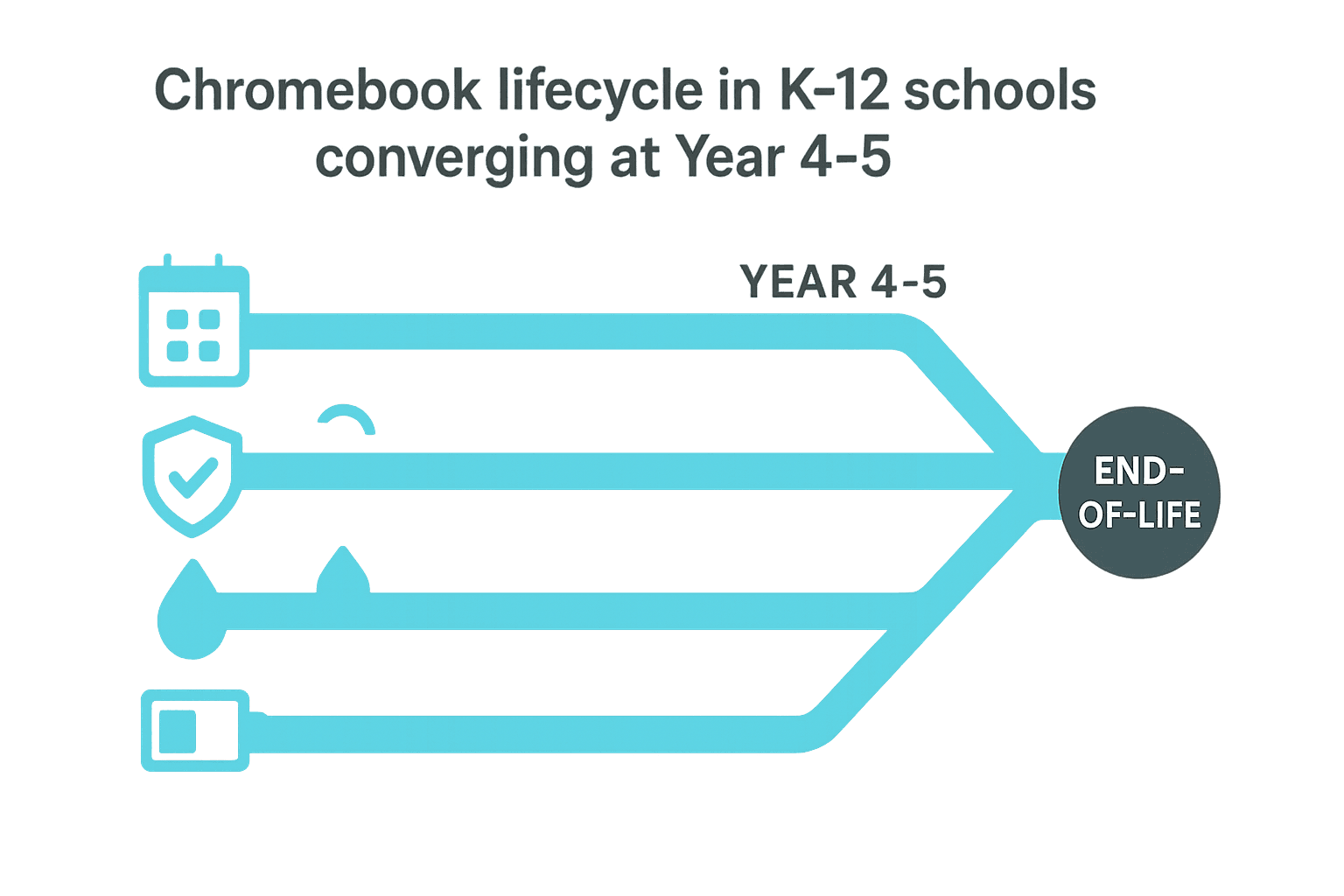
Most K-12 Chromebooks reach end of useful life at four to five years, driven by Auto Update Expiration (AUE) and battery health, not processor obsolescence. The AUE date is published by Google for every ChromeOS device and should be checked before any purchase decision; refresh cycles get shorter when districts buy devices with less than five years of AUE remaining.
Do schools need an MDM for Chromebooks?
Yes. Every K-12 Chromebook deployment needs Google's Chrome Device Console (free with Google Workspace for Education) to enroll devices, place them in organizational units, and apply policy. The Chrome Device Console covers device-level management. An asset management and help desk platform on top of it covers the user-to-device linkage, incident history, repair workflow, and family invoicing that MDM alone doesn't.
What's the best way to manage Chromebooks in a 1:1 program?
The best management approach pairs Google's Chrome Device Console (for device enrollment and policy) with a K-12 specific asset, help desk, and incident platform (for user assignments, damage workflow, invoicing, and reporting). The platform layer is what keeps the inventory and the device truth in sync, routes damaged devices through repair, and produces the board-ready reports districts need at year-end.
Where to go from here
If you're buying Chromebooks for the first time, the order of operations is: pick a model based on drop spec and AUE date, get a published per-student price from your management platform before signing the device quote, and budget the four-year total cost, not the sticker price.
If you're refreshing an existing 1:1 program, this is the right moment to ask whether the management workflow you've been running on spreadsheets is still tenable at your current fleet size. The answer for most districts crossing 2,000 devices is no.
Book a 30-minute demo and we'll show you how a real district runs the asset-to-incident-to-invoice workflow on top of the Chrome Device Console. No sales pitch, no quote-only pricing, no surprise renewals.
Once the devices arrive, Chromebook management covers the other half: console sync, grade-based org-unit placement, repair workflow, and damage billing.