
May 26, 2026 · Manage1to1
How Long Does a Chromebook Last? What K-12 IT Directors Actually Need to Know
Chromebooks last 5-8 years, but Google's AUE date is what really retires them in schools. How K-12 IT directors plan smarter refresh cycles.

Picture this: you're staring at a spreadsheet of 3,200 Chromebooks. Half of them haven't checked in for 90 days or more. You don't know which ones are physically dead, which ones are sitting in a closet somewhere, and which ones just hit their Auto Update Expiration date and are now running unsupported software on your network. Your refresh cycle is six months out, and you have no defensible number to bring to the budget meeting.
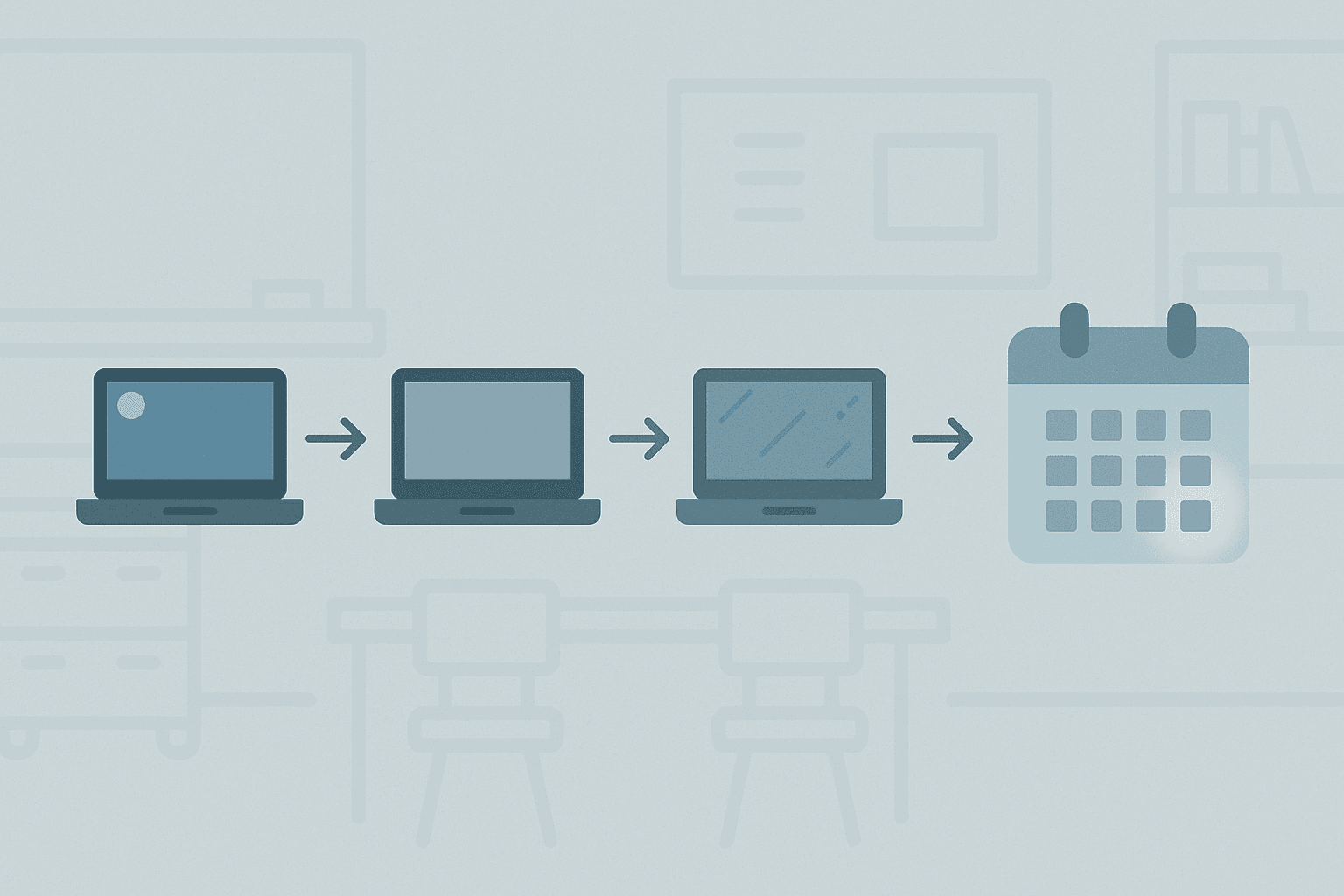
Understanding how long does a Chromebook last is not a simple answer, because there are actually two separate clocks running on every device in your fleet: physical hardware life and Google's AUE date (Source: Google Auto Update policy, support.google.com/chrome/a/answer/6220366). Getting those two timelines confused is how districts end up either over-replacing hardware that still works or running expired devices well past their security window.
This guide gives you the framework to tell them apart and build a replacement schedule you can actually defend.
How Long Does a Chromebook Last: Hardware Life vs. AUE Date
Physical Hardware Lifespan in School Deployments
Most school Chromebooks are replaced every 4 to 6 years in practice, though the hardware itself can physically survive up to 8 years with reasonable care. The real forcing function is the AUE date, which ends Google security updates and creates compliance exposure that most districts cannot afford to ignore (Source: Google Auto Update policy, support.google.com/chrome/a/answer/6220366). In short: the device may still turn on, but once AUE hits, it is effectively retired from a security and policy standpoint.
In K-12 deployments specifically, physical wear accelerates faster than in consumer use. Chromebooks move through backpacks, lockers, cafeterias, and the occasional drop from a desk. Elementary grades are harder on hardware than high school. A device that might last 7 years in an office environment may show significant wear by year 4 in a middle school.
Education-specific builds from manufacturers like Lenovo, HP, and Acer are designed for this. Ruggedized hinges, reinforced ports, and spill-resistant keyboards are standard on most education-line models. That build quality is what gets you toward the higher end of the chromebook lifespan range.
What the AUE Date Actually Means for Your Fleet
Google sets an Auto Update Expiration date for every ChromeOS device it certifies. Per Google's policy, this is "the latest date that ChromeOS updates will be made available" for that model (Source: Google Auto Update policy, support.google.com/chrome/a/answer/6220366). Once that date passes, the device stops receiving ChromeOS updates, security patches, and feature releases.
The AUE date is assigned by device model, not by when you purchased it. A model released in 2019 may have an AUE in 2026 regardless of when your district bought it. This is a critical detail. If you purchased refurbished or older-model Chromebooks to stretch a budget, you may have bought far less useful life than you expected.
Google has extended AUE windows in recent years, with newer purchases on current models now reaching up to 8 years post-launch. Older models had shorter windows, some as few as 5 or 6 years from device release, not from your purchase date.
Why AUE Is the Real Deadline, Not the Hinge
A broken hinge is a repair problem. An expired AUE is a fleet-wide security and compliance problem. The distinction matters when you are planning budgets.
How long does Chrome last as a supported operating system on any given device depends entirely on that model's AUE date, not on the condition of the physical hardware. A Chromebook with a cracked bezel but an AUE two years out still has usable life. A Chromebook in perfect physical condition that hit AUE last month is a liability sitting on a student's desk.
IT directors who track only physical condition are missing the more critical variable. Both timelines need to live in the same planning document.
Google's Auto-Update Expiration: The Clock Every IT Director Needs to Watch
How Google Sets AUE Dates by Device Model
Google assigns AUE dates at the device model level. Dell, HP, Lenovo, Acer, and Samsung all have education-line Chromebooks in active use across K-12 fleets, and each model carries its own AUE date (Source: Google Auto Update policy, support.google.com/chrome/a/answer/6220366). A district running four or five different Chromebook models from procurement decisions made over several years will almost certainly have staggered expiration dates spread across a wide window.
That staggering is both a planning challenge and an opportunity. It means you are unlikely to face a cliff where everything expires at once, but it also means your fleet's AUE landscape is not visible without deliberately looking at it model by model.
Google publishes AUE dates for all certified devices. The list is maintained at support.google.com/chrome/a/answer/6220366 and is searchable by manufacturer and model. If you do not have this data mapped to your asset inventory, you are flying without instruments.
What Happens to a Chromebook After AUE
When a device reaches its AUE date, ChromeOS stops updating on that device. The version of ChromeOS installed at AUE is effectively frozen. No new features, no security patches, and no policy updates from Google Workspace Chrome Device Console will apply.
For google chromebooks for schools, this creates an immediate problem. Many state and federal compliance frameworks, including requirements tied to student data privacy, expect devices handling student information to run supported software. An unpatched Chromebook in a classroom is a harder conversation to have with a privacy officer or auditor than a missing charger.
Practically speaking, many apps and web-based platforms will continue to work for some period after AUE. But browser compatibility degrades over time, and the security gap widens with every new vulnerability that Google patches on supported devices but not on yours.
Security and Compliance Risk After AUE in a School Environment
If you are running chromebooks schools use past their AUE date, you are not just dealing with outdated software. You are managing a device that cannot receive zero-day security patches. Schools are not low-priority targets. Student data, staff credentials, and network access are all in play.
A practical note for any director currently planning a 2024 or 2025 procurement: verify the AUE date for every model you are considering before the purchase order is submitted, not after the devices arrive. Ask the vendor explicitly. Compare the AUE date against your expected deployment window. If you are planning a 5-year deployment cycle and the AUE is 4 years out from device launch, you have already paid for a problem. We covered the full buying framework in Chromebooks for Schools: What to Buy, What to Skip, and How to Manage Every Device After Day One.
This is frank advice, not a scare tactic. The districts that catch this early adjust their specs or timelines. The ones that find it late scramble to re-budget mid-cycle.
Common Hardware Failure Points and How Schools Can Extend Chromebook Lifespan
Battery Degradation: The Silent Fleet Problem
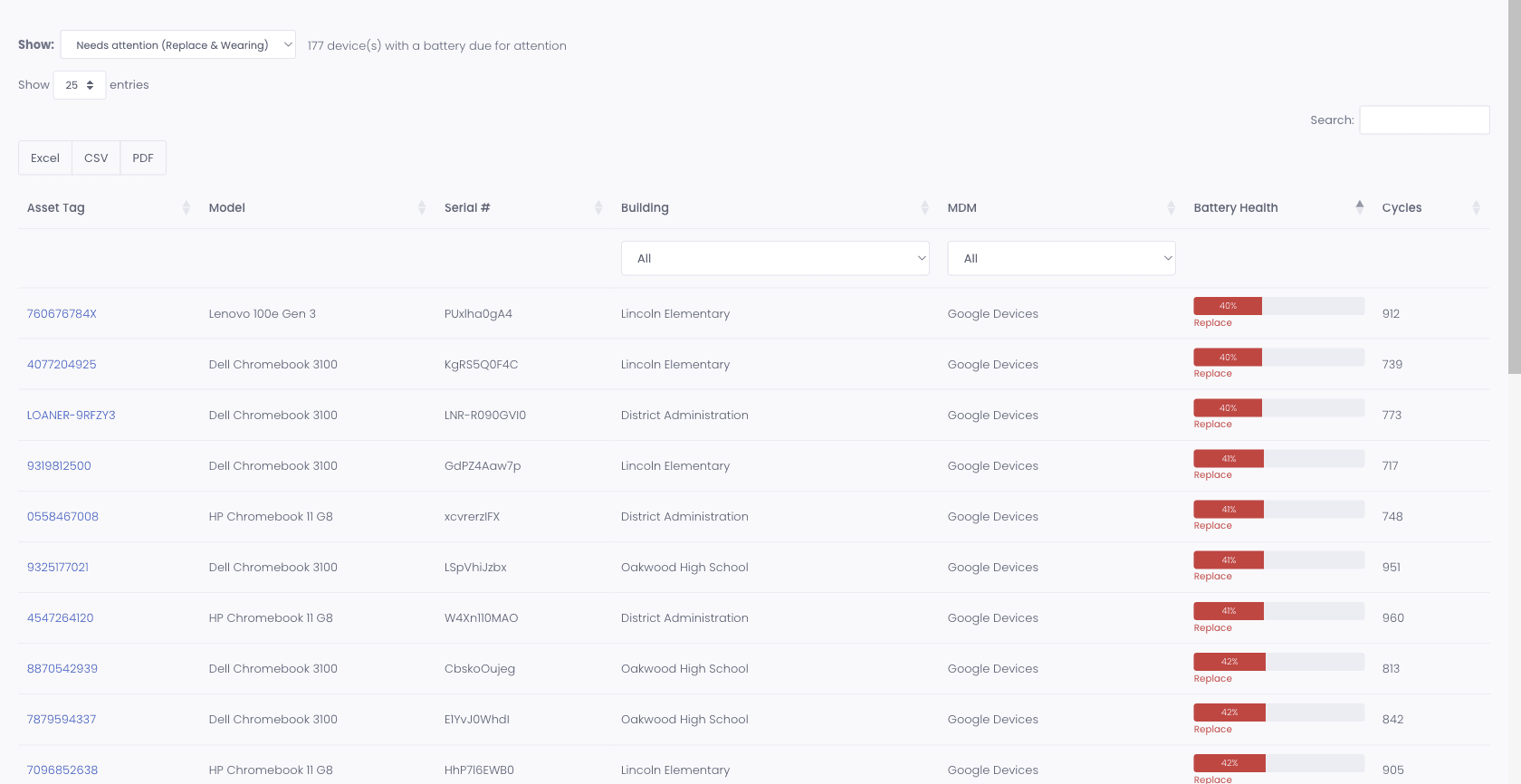
Battery wear is the most consistent hardware problem in large K-12 Chromebook fleets, and it is the hardest to catch without intentional tracking. Unlike a cracked screen, a degraded battery does not generate a help desk ticket until the student cannot make it through a class period.
Chromebook batteries typically begin showing meaningful capacity loss between years 3 and 4 in active school use. By year 5, a device that shipped with 10-hour battery life may be delivering 4 to 5 hours under normal load. That is enough to impact instruction time, especially in schools without 1-to-1 charging carts in every room.
Battery replacement on most Chromebook models is possible but not always cost-effective. Parts typically run $40 to $80, plus labor. On a 6-year-old device approaching AUE, that spend often does not pencil out.
The practical fix is to stop finding out from a student. Battery health now flows into Manage1to1 from your MDM and sits on the device record, with a Device Battery Health report that surfaces the batteries wearing out before they strand anyone mid-class. That turns battery replacement into something you schedule over the summer rather than something you react to in November.
Hinges, Screens, and Ports: What Fails First by Grade Level
Hinges are the most common structural failure point, particularly in grades 3 through 8. The open-close cycle in a school day far exceeds what consumer devices are tested for. Education-line models with reinforced hinges fare significantly better, but no hinge is immune to a student who opens a laptop from one corner.
Screens are the most expensive physical repair and the most common insurance claim. Cracked LCDs typically run $60 to $120 in parts and take the most technician time per repair. USB-C and charging ports follow, particularly on devices used with shared charging carts where connector stress accumulates over years. We wrote up the full damage-to-invoice workflow in Chromebook Screen Repair: The District Workflow from Damage Report to Family Invoice.
High school fleets tend to see more keyboard wear and port damage. Elementary fleets see more screen and hinge failures. If you are building a repair budget, the grade-level distribution of your fleet should drive your parts inventory more than a generic average.
Repair vs. Replace: A Simple Cost-Benefit Framework
The question is not whether a device can be repaired. The question is whether the repair cost makes sense given the remaining useful life.
A practical threshold: if the repair cost exceeds 40 to 50 percent of the replacement cost of a comparable new unit, and the device has fewer than 18 months before AUE, retire it. A screen replacement that costs $100 on a device that will hit AUE in 14 months and costs $279 to replace is not a savings, it is a delay.
For context, education-configuration Chromebooks in current procurement cycles typically run $250 to $350 per unit depending on specs. How much does a chromebook cost for schools varies by model, volume, and whether you are going through a state contract or direct. Battery replacements at $40 to $80 in parts are worth doing if the device has 2 or more years of AUE coverage remaining and is otherwise in good condition. Hinges in the $25 to $50 parts range are almost always worth repairing if the rest of the device is functional.
Track your repair history per device. A device that has been through two screen replacements and a hinge repair in three years is telling you something your spreadsheet may not be showing clearly.
That framework only works at scale if the numbers are already in the system. Our K-12 asset management software holds the repair history on the device record, and you can set a useful life and a replacement cost per model or category so the threshold above is applied for you rather than recalculated by hand. The device refresh reporting turns that into a dollar forecast of upcoming replacement spend and an estimated remaining value per device, filterable by building, which is the version a business office will accept when you ask for the money.
Maintenance Practices That Add 12 to 18 Months to Device Life
Consistent maintenance habits are not glamorous but they are measurable. Districts that run regular cleaning cycles on keyboards and vents, enforce charging cart procedures, and train students on proper carry technique see noticeably longer hardware life.
Firmware and ChromeOS updates should be verified as applying to all managed devices, not just assumed. Devices that have drifted from MDM enrollment sometimes stop receiving updates long before AUE, which compounds both the security and performance issues.
Protective cases add cost at purchase but reduce screen and corner damage significantly, especially in elementary grades. The total cost of ownership math almost always favors the case when you account for even one prevented screen replacement per 10 devices.
Rotating devices off the most intensive use cases as they age, moving year-5 devices from primary student use to testing stations or cart spares, extends the chromebook lifespan of your fleet without spending on new hardware.
How Long Does a Chromebook Last in Your Fleet? Using Asset Data to Plan Replacements
Why Most Districts Fly Blind on Refresh Timing
The scenario at the top of this article is not hypothetical. Most districts with 1,000 or more devices have a significant percentage of their fleet that they cannot confidently account for at any given moment. Devices go home with students, sit in storage rooms, or stop checking into MDM after a user profile issue. By the time refresh planning starts, the asset data is months or years out of date.
Planning a replacement cycle without accurate asset data means you are estimating instead of projecting. You might over-order replacements for devices that are simply misplaced and will show up in April. You might under-order because you do not know how many devices have already passed AUE and need to come off the network immediately.
Districts that face 400 or more device replacement decisions in a single refresh cycle need that process anchored in real data, not a best-guess spreadsheet (Source: Yeo and Yeo Technology Guide, yeoandyeo.com). The planning timeline for specs, budget approvals, and purchasing alone typically runs 6 to 12 months. You cannot afford to start that process with unreliable inventory.
Using Last Seen and Lifecycle Data to Identify At-Risk Devices
Last Seen data is one of the most actionable signals in a device fleet. A Chromebook that has not checked in for 60 or 90 days is either lost, broken, sitting in a closet, or assigned to a student who has moved. Each of those outcomes has a different resolution, but you cannot pursue any of them if you do not have the data surfaced in a usable format.
Lifecycle data tied to your asset records tells you when a device was deployed, how many repair tickets it has generated, what its AUE date is, and when warranty coverage expires. With that combination, you can sort your fleet into clear categories: devices to keep, devices to repair, devices to retire, and devices to recover.
That sorting is what turns a refresh cycle from a stressful scramble into a planned procurement. It also gives you something to show a superintendent or board when they ask how you arrived at your replacement numbers.
Warranty Tracking to Catch What You Are Still Owed
Manufacturer warranties on education-line Chromebooks are typically 1 to 3 years, with options to extend. In a fleet of thousands of devices, it is nearly impossible to manually track which devices still have active coverage without a system built for it.
Devices with active warranty coverage that are repaired out-of-pocket are a straightforward budget loss. Warranty Tracking tied to your asset records surfaces those opportunities automatically, so your technicians know before they order parts whether the repair should be a warranty claim instead.
In a fleet of 3,000 devices, even catching five to ten percent of repairs that should have been warranty claims pays for the overhead of maintaining good asset records. That is not an estimate, it is the kind of math that shows up in actual budget recoveries.
Inventory Audit to Validate What You Actually Have Before Budgeting
The worst time to discover your device count is wrong is after a purchase order has been submitted. An Inventory Audit process run before refresh planning begins reconciles what your records say you have against what is physically present and checking in. It catches the devices that are misplaced but recoverable, the devices that are assigned to students who transferred out, and the devices that were never returned from last year's loaner pool.
Over-ordering replacements because of inaccurate inventory is a direct budget cost. Under-ordering because ghost devices inflate your active count creates a shortage that disrupts the school year.
Manage1to1 was built by former K-12 district employees, including Tech Directors, Network Engineers, and Technicians, and is used by 2,100+ districts across 43 states, with 18M+ devices tracked over 13+ years in production. The Asset Management tools, including Warranty Tracking and Inventory Audit, are built around the operational realities of district IT, not retrofitted from a generic asset management platform. It works alongside your existing MDM, including Google Workspace Chrome Device Console and JAMF, rather than replacing it. We are employee-owned through an ESOP structure, meaning every person building the product came from a school district.
Last Seen data specifically surfaces devices that have gone dark, before they disappear from budget planning entirely and show up as a surprise gap in your replacement count.
Frequently Asked Questions
How often do Chromebooks need to be replaced?
Most school Chromebooks are replaced every 4 to 6 years in practice, though hardware can physically last up to 8 years. The real forcing function is the AUE date, which ends Google security updates and creates compliance exposure that most districts cannot carry. Once AUE hits, the device should come off active student use regardless of its physical condition (Source: Google Auto Update policy, support.google.com/chrome/a/answer/6220366).
What are the disadvantages of having a Chromebook?
The primary limitation is dependency on internet connectivity for most functions, though offline capability has improved. ChromeOS does not run traditional Windows or Mac software, which matters in districts with legacy applications tied to specific operating systems. AUE dates mean devices have a defined end-of-support window that requires active planning, unlike some Windows hardware that can receive third-party OS updates beyond manufacturer support. Storage is typically limited compared to full laptops, though most K-12 workflows are cloud-based and this rarely creates a practical problem.
Are Chromebooks worth buying in 2026?
For most K-12 districts, yes. The total cost of ownership is lower than Windows laptops at comparable education configurations, management through Google Workspace Chrome Device Console is mature and well-supported, and the current generation of education-line Chromebooks from major manufacturers carries AUE dates well into the 2030s on models purchased now. The main discipline required is verifying AUE at the time of purchase and building that date into your refresh planning from day one. Districts that do that homework tend to get full value from the investment. Districts that do not often discover mid-cycle that they bought less useful life than they expected.
What is the most reliable brand of Chromebook?
Lenovo, HP, and Acer consistently make up the largest share of K-12 Chromebook fleets based on volume and education-specific build lines. All three offer ruggedized education configurations with reinforced hinges, spill-resistant keyboards, and longer AUE windows on current models. Reliability varies more by model line and configuration than by brand overall. Education-specific models from any of the three major manufacturers will outperform their consumer counterparts in a school deployment. The right answer for your district depends on your existing management infrastructure, state contract availability, and the specific AUE dates on the models you are evaluating.
Planning Starts With What You Actually Know
The two-timeline framework is straightforward once you have it in front of you. Physical hardware life tells you how long the device can function. The AUE date tells you how long it should stay in active student use. Those are different numbers, and confusing them is where most refresh plans go sideways.
The deeper problem is that most districts hit the planning phase without accurate data on either timeline for their full fleet. Devices that have not checked in for months skew your active count. Warranty coverage you have not tracked means repairs you paid for out of pocket that should have been claims. Inventory that has not been audited means your purchase order is built on assumptions.
If you want to see how the tooling works, the Warranty Tracking and Inventory Audit feature pages walk through the specifics. If you are budgeting the management platform alongside your device refresh, our per-student pricing is published in full, no quote request required. The public demo is available to explore on your own without scheduling a call.