
Some students hand the device back every afternoon. Somebody has to know which ones.
Every district has a short list of students whose device should not go home for a while: the third cracked screen this year, a balance that has sat unpaid since October, a dean’s decision after an incident. Deciding who belongs on that list is the easy part. Making it hold at 3:15 on a Thursday, with a substitute at the library desk, is the hard part.
Where it breaks today
A list in an assistant principal’s head is not a restriction.
In most buildings the daily check-in list lives in an email thread, a sticky note on the media center counter, or the memory of the one person who set it up. It works while that person is in the building. When they are out, the device goes home, nobody notices until the next morning, and by the time anyone asks why, there is no record of who put the student on the list or why.
- The person handing out devices in the morning has no idea which students are on the list
- A device that never came back in the afternoon is discovered the next day, if at all
- Students placed for an unpaid balance stay on the list long after the family paid, because nobody remembered to take them off
- Restrictions from two years ago are still being enforced and nobody can say who asked for them
- The reason a student was restricted, which is often disciplinary or financial, ends up visible to whoever opens the spreadsheet
The workflow
How it actually runs.
- 1Step 1 of 7
Put the student on the plan, with a reason someone can read later
A restriction is a set of fields on the student profile rather than a note in a free-text box: the type of restriction (Check-In/Check-Out is one of them), who requested it, the reason, its status, and the date. A year from now, anyone with permission can open the profile and see exactly why this student hands their device back every day and who decided it.
- Restriction type, requested by, reason, status, and date as separate fields
- Placed and removed from the student profile by staff with the restricted-students permission
- Who originally applied it and who last changed it are recorded with dates
- 2Step 2 of 7
Or let an unpaid balance put them there
Many districts already have a rule that a student who owes past a certain amount checks their device in daily. Written down, it is a policy. Enforced by hand, it is a list somebody rebuilds every few weeks. Auto-placement turns it into a setting: once a day, any student whose balance has reached your threshold is placed on Check-In/Check-Out, and you choose whether they come back off on their own once they pay.
- Off by default; nothing happens until you turn it on and set a dollar threshold
- Balances are checked once a day, and auto-placed students show as Automatic (outstanding balance) so you can tell them apart
- Optionally lift the plan automatically when the balance drops below the threshold
- Only ever lifts students it placed itself, and never stacks on top of a restriction a person already set
Manage1to1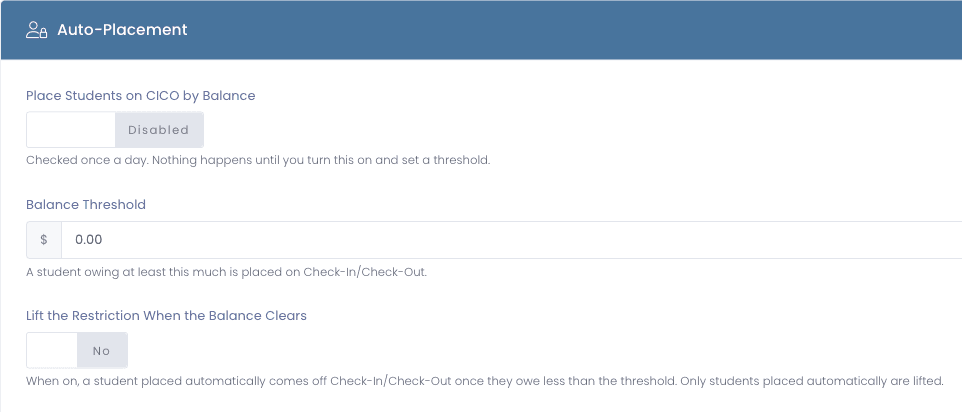
- 3Step 3 of 7
The warning is at the table, not in someone’s memory
When a restricted student comes up at Rapid Check-Out, at Rapid Check-In, or on a device’s Check-Out to User form, a red Technology Restriction banner appears before anything is handed over. It informs rather than blocks, because whether a restricted student gets a device on a given day is your district’s call, but nobody can say they did not know.
- Shows in Rapid Check-Out, Rapid Check-In, and checkout from the device profile
- Staff with the restricted-students permission see the reason and the history
- Staff without it see that the student is restricted and who applied it, but not the reason, so a student volunteer at the desk never reads a disciplinary note
Manage1to1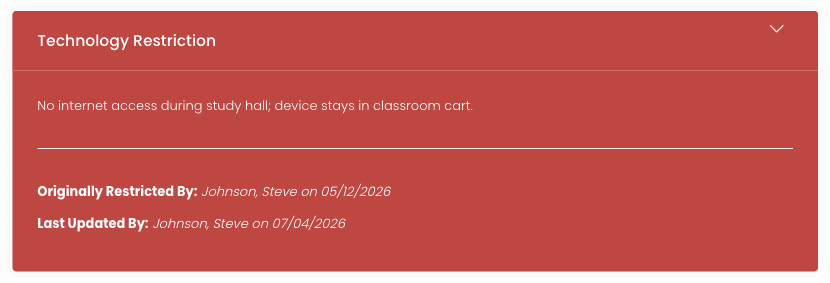
- 4Step 4 of 7
At the end of the day, one screen says who still has a device out
The Check-In/Check-Out Students report lists every active student on the plan whether or not they hold a device right now, marked Still out or Returned. Filter to one building and Still out, and you have the list of who to find before the buses leave.
- Every student on the plan, with their device, building, when they were placed, who requested it, and why
- Building and status filters, with a count that updates as you narrow it
- A student holding two devices appears once per device, so nothing hides behind a single row
- Excel, CSV, and PDF export for a printed afternoon checklist
Manage1to1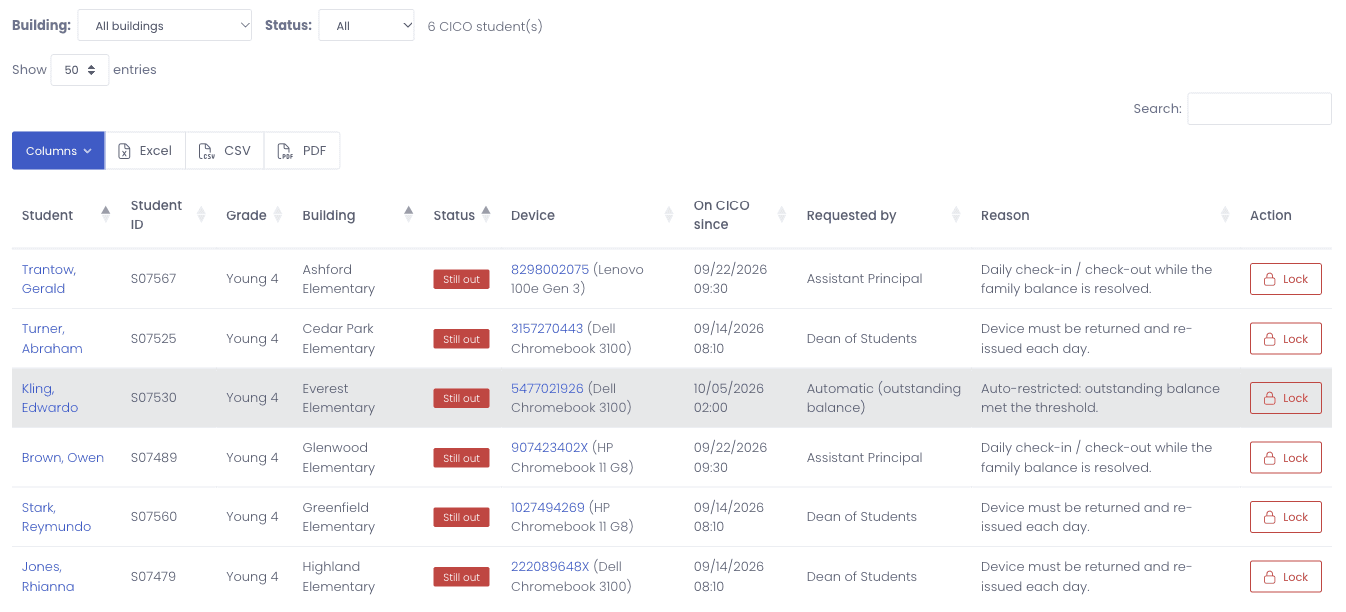
- 5Step 5 of 7
The list comes to the people who chase it
A report only helps if somebody remembers to open it at the right time. The non-return notification removes that step: set a cutoff time and choose who should hear about it, and shortly after the cutoff each day they get one email listing every Check-In/Check-Out student whose device is still out.
- Set the cutoff to match your dismissal time
- Send it to a media center lead, a dean, a building administrator, or any email address
- The email lists each student, their device, and when it went out, with a link to the report
- No devices out means no email that day, so it never becomes noise people learn to ignore
Manage1to1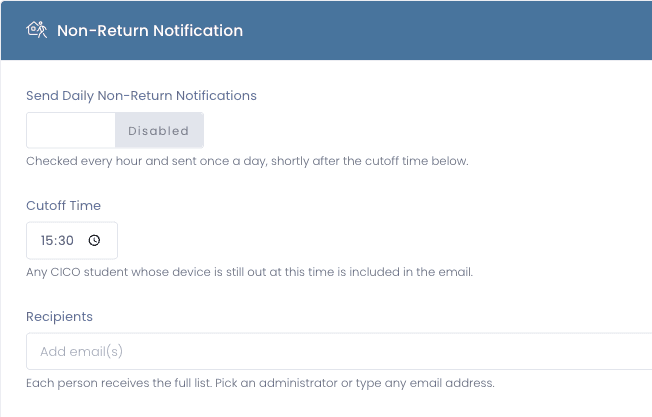
- 6Step 6 of 7
When a device does not come back, lock it from the same screen
Sometimes the device leaves anyway. Rather than opening your MDM console and searching for the serial, staff with permission to disable devices can press Lock on that student’s row. The device shows your configured message and stays unusable until it is returned and re-enabled.
- Appears on Still out rows when the device is managed by your connected MDM
- Asks for confirmation before anything is sent
- The lock is queued and applies the next time the device checks in with your MDM, so it is not instant
- Re-enable the device from its own profile once it is back
Manage1to1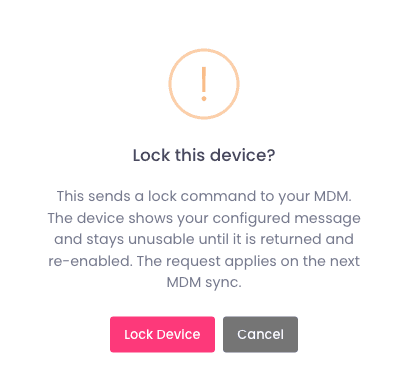
- 7Step 7 of 7
Restrictions come off on purpose, not by accident
The quiet failure of any restriction list is that nothing ever leaves it. Each restriction can be marked reviewed for the current school year, and a Restriction Review report shows which ones still need a look. So nobody has to remember to run it, Manage1to1 sends an annual reminder to the right administrator listing the students due for review.
- Mark a restriction reviewed for this school year, or end it
- Reminders route by grade level, so each dean or assistant principal gets their own students rather than the whole district
- Add staff who should see the list without managing it, such as a counselor
- Before a summer swap or end-of-year collection, Restricted Students with Devices lists every restricted student who still holds hardware, grouped by grade
What changes
The list holds when the person who made it is out.
A daily check-in plan works when it is enforced by the record rather than by whoever happens to be at the desk. That also makes it defensible: when a family asks why their child’s device stays at school, the answer, the date, and the person who decided it are on the profile.
- Whoever hands out devices sees the restriction at the moment it matters
- Devices that did not come back are known the same afternoon, not the next morning
- Students placed for a balance come off when the family pays, without anyone tracking it
- Old restrictions get reviewed every year instead of lingering indefinitely
- Sensitive reasons stay visible only to the staff cleared to read them
The capabilities behind this
FAQ
Common questions.
- No, it only shares the name. The PBIS intervention is a behavior support where a student checks in with a mentor and carries a daily point card. Our Check-In/Check-Out is about the device: a student on the plan returns their school device at the end of each day and checks it out again the next morning. It does not track behavior points, though a school running both may well put the same students on each.
- No. The Technology Restriction banner appears at Rapid Check-Out, Rapid Check-In, and checkout from the device profile, so staff always see it before a device changes hands, but it does not block the transaction. Whether a restricted student receives a device on a particular day is a district policy decision, and the banner gives whoever is at the desk what they need to apply it.
- Yes, if you turn it on. Set a dollar threshold, and once a day any active student owing at least that much is placed on Check-In/Check-Out. You decide whether they come off automatically once their balance drops below the threshold or stay on until a staff member reviews them. Auto-placement only ever lifts students it placed, so a restriction a dean set by hand is never removed because a family paid.
- Only staff whose role includes the restricted-students permission. Everyone else who encounters the student at checkout sees that a restriction exists and who applied it, but not the reason. That matters because the reason is often disciplinary or financial, and the person at the desk may be a substitute or a student worker.
- No, and we would rather say so plainly. The lock is sent to your MDM and applies the next time the device checks in with it, which depends on the device being powered on and connected. The confirmation says this before you send it. Once the device is back, re-enable it from its profile.
See it with your own list
Run tomorrow afternoon’s check-in from one screen.
Tell us how your buildings handle daily check-in today, who keeps the list and what triggers it, and we will walk you through the same workflow in the demo. Our whole team is former K-12 IT, so we will tell you honestly where it fits your process and where it does not.